Harica
Applying for a User Certificate Using HARICA Self-Service
The following section provides a step-by-step guide on how employees can issue and download a new user certificate in HARICA Self-Service.
Important information before you start:
If at any point you are asked to upload a document (e.g., your ID card) or manually enter personal information, please cancel the application and come to the Service Desk.
The most common reason for this is selecting the wrong option at the beginning of the process.
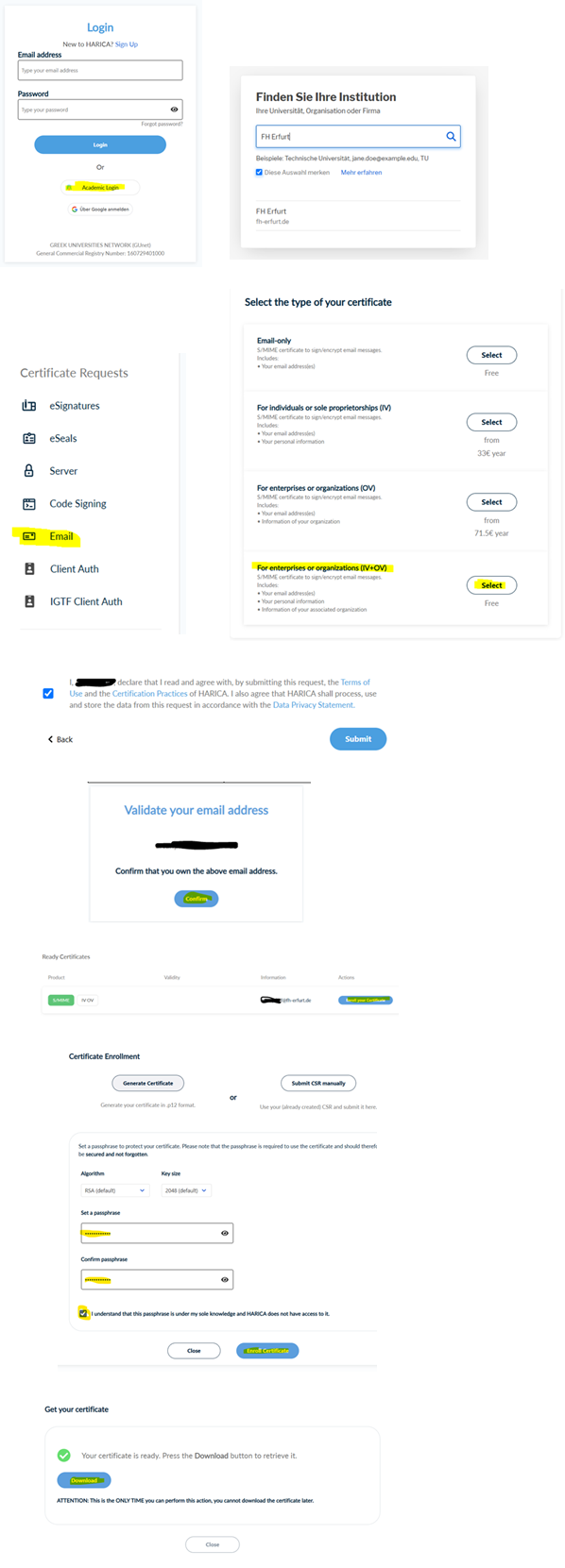
- Access the HARICA Self-Service portal:
https://cm.harica.gr/Login - In the login window, select:
"Academic Login" - There, look for:
"FH Erfurt"
and select it. - Log in to the university's central registration service using your university account and consent to the transfer of your data.
This will automatically pre-fill the “First Name,” “Last Name,” and “Email” fields on the application form for you. - In the “Certificate Request” menu on the left, select the option:
"Email" - Then select:
"For enterprise or organisations (IV+OV)" (the bottom item, at no cost (“Free”)) - You can confirm the next screen by clicking “Next.” Your email address should already be entered here.
- Next, you'll see a summary of your application information. At the end of this summary, you must check the box to consent to the transmission of user data and to confirm compliance with the certificate guidelines, and then complete the process by clicking “Submit.”
- Now go to your inbox and look for the confirmation email from HARICA.
- Please copy the link behind the “Confirm” button, paste it into the browser window where you just requested the certificate, and confirm your email address by clicking “Confirm” in the browser.
(If you click the button directly in the email, you can proceed immediately to step 11, provided that your default browser is the same one you used to apply.) - You will then be automatically redirected back to the dashboard.
You can continue the process by clicking:
"Enroll your Certificate" - You must now set a password and enter it twice.
If you lose your password, you must request a new certificate. - Check the box at the end for password hints and click:
"Enroll Certificate" - The download will begin in the next window.
Please note that you can only download this file once!
Save the .p12 file in a secure location (HOME drive or NextCloud).
Double-click the file to import the new certificate into the certificate store. You will need to enter the password you set above again.